Buyer guide
Buying on Whop
Know what you’re paying for, find what you bought, and keep track of renewals.
Before you pay
Confirm the seller name and the exact product or tier. Check which course, download, software features, or community spaces are included and whether delivery requires a separate account or app.
- Check the total, currency, and whether the charge is one-time or recurring.
- If a trial is offered, note its end date and the amount and frequency of the first paid charges.
- Read the offer’s cancellation and refund terms. Save the order confirmation and note the date of any upcoming renewal.
If you’re deciding between a one-time purchase and a subscription, compare both offers over the same period.
Find your purchase
Sign in to Whop with the same account used at checkout and look for your purchase or membership. If access is missing, compare the email on your receipt with the account you’re using. Open the product and look for the seller’s onboarding instructions.
If a product needs a linked service, check which account is connected before relinking. Share the order reference and a description of the missing access with the seller or Whop Support. Keep passwords and payment-card details private.
I paid, but my lesson is locked
Worked scenario: you have a receipt for a course, but opening the first lesson doesn’t work. Check the account, the order, and then the lesson in that order.
1. Match the receipt to your account
Find the order confirmation in the inbox you used at checkout. Note the email address or Whop ID on the receipt. Open Whop Orders and sign in with that account.
Check: If your usual login uses a different email, switch accounts before going further.
2. Find the order
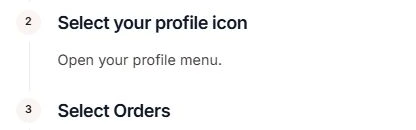
On Whop, open the profile menu and select Orders. Match the product and seller to your receipt.
If the order is missing: Search your other inboxes for the confirmation and recheck the account. If you still can’t find the order, ask Whop Support to help locate it using your order reference.
3. Check access inside the product
Open the purchased product from your joined memberships. Look for the course or app listed in the seller’s instructions. A receipt confirms the purchase. The offer and its delivery instructions tell you what that purchase should unlock.
If the order appears but the lesson is locked: Ask the seller whether that specific lesson comes with your tier and whether an onboarding step is required. Send the order reference, lesson name, and exact error. Keep sign-in codes and card details private.
Manage a renewal
Find the membership in your account, open its management options, and follow the cancellation prompts before the next renewal. Check the confirmation for the date access ends. Cancellation of future renewals and a refund for a prior charge are separate requests.
For seller-specific terms, check the offer or contact the seller. For issues like an unrecognized or duplicate charge, use Whop Support. See Whop’s Buyer Terms for the platform’s billing and cancellation details.
Common buyer questions
What if my receipt and account use different email addresses?
Start with the account identified on the receipt. If you still can’t see the membership, contact Whop Support with the order reference.
Does ending a subscription refund the last charge?
Cancellation controls future renewals. Check the applicable refund terms and follow the seller’s or platform’s refund process for a charge that has already gone through.
Troubleshoot a missing purchase or billing issue with worked examples.